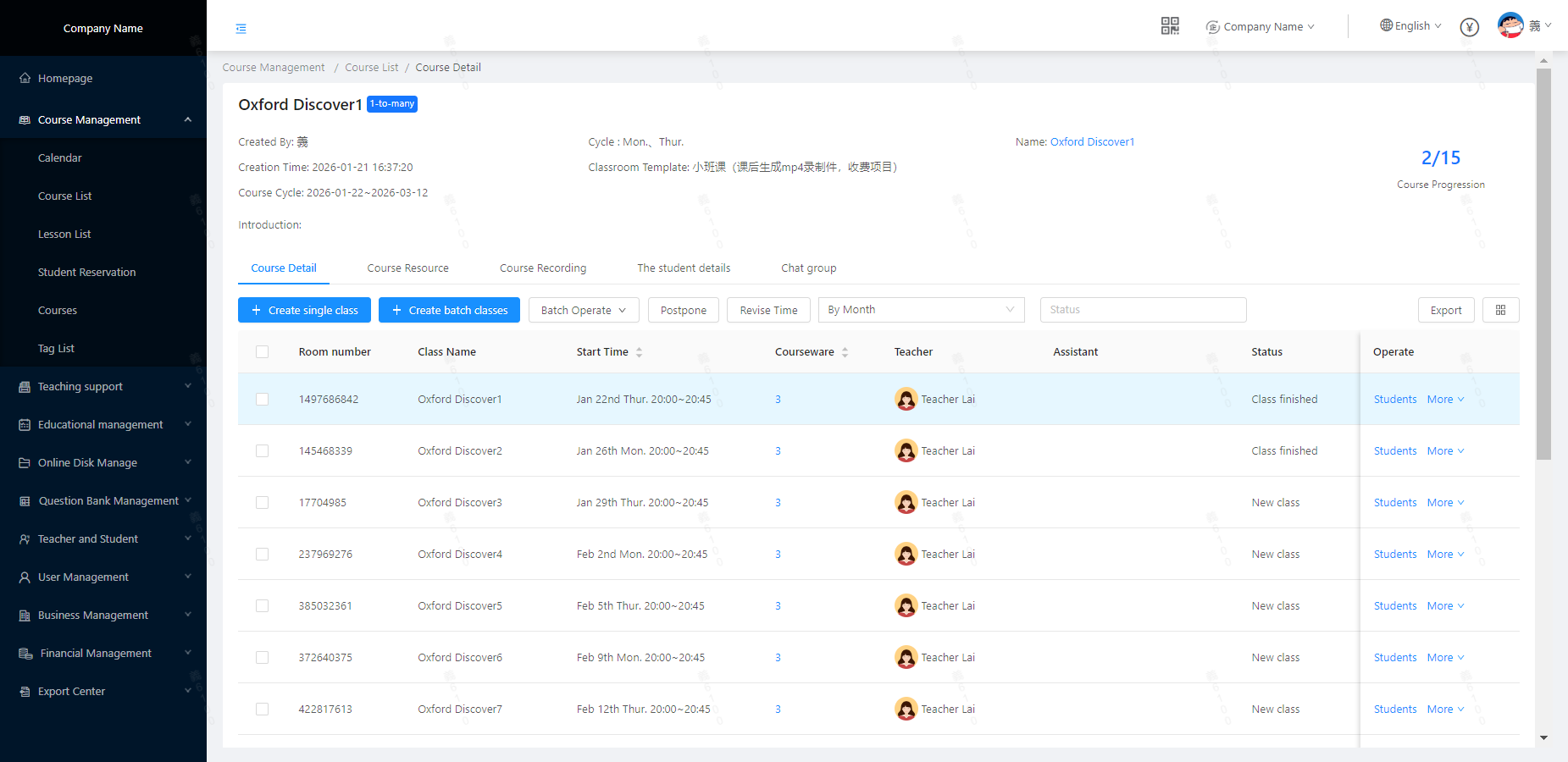
How to Schedule Classes (Create the lessons)
Definition: The institution schedules corresponding classes for teachers and students in the course system based on their available time.
1.For courses referencing a course package, create multiple class lessons in bulk, as shown in the figure below:
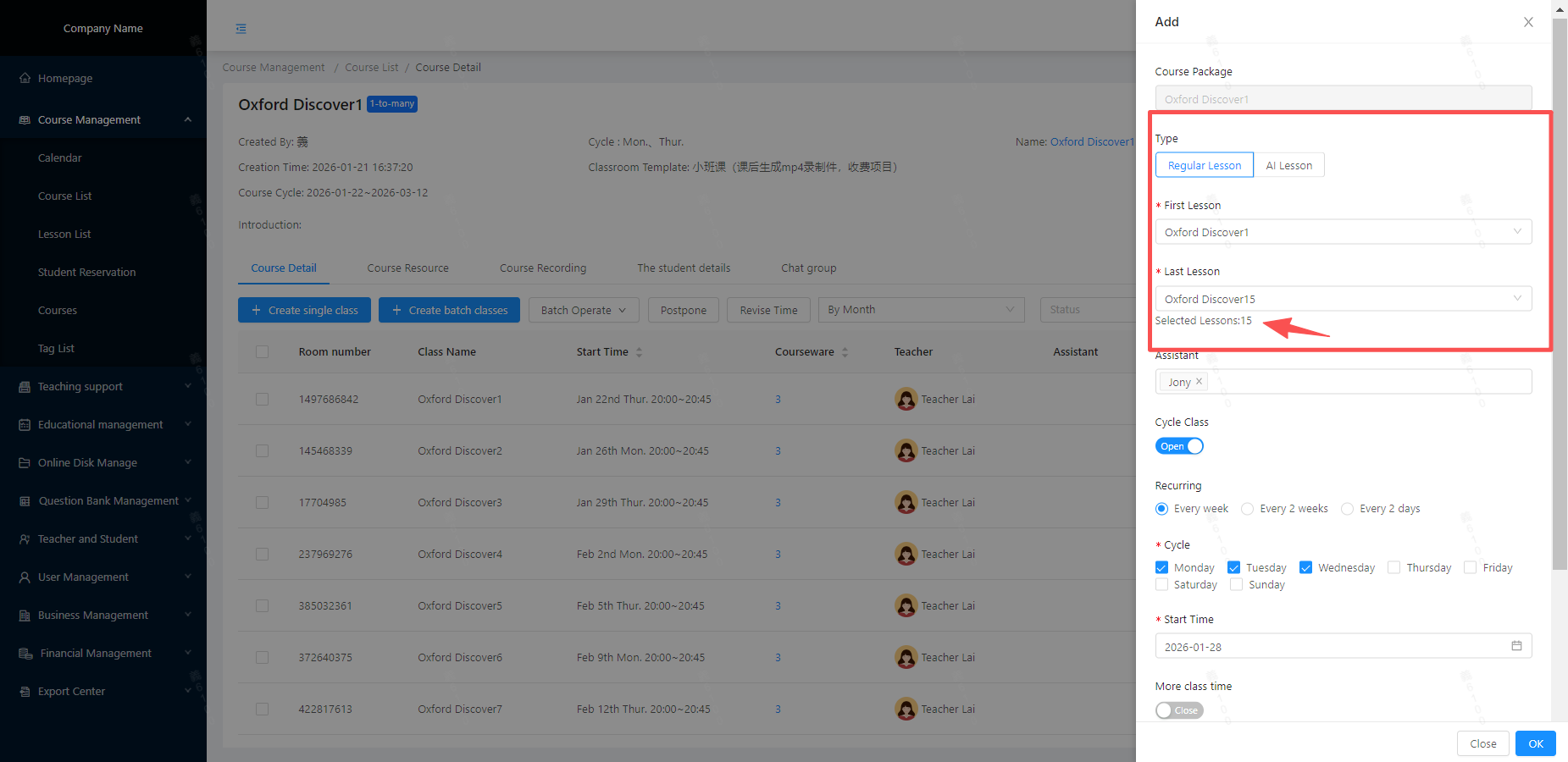 - Course packages cannot be modified.
- The start and end class lessons refer to those under the referenced Course Package; the number of class lessons will be displayed upon selection.
- The class lesson is created successfully. If the course package class lesson has pre-attached courseware upon creation, the courseware will be automatically imported into the newly created class lesson.
- Course packages cannot be modified.
- The start and end class lessons refer to those under the referenced Course Package; the number of class lessons will be displayed upon selection.
- The class lesson is created successfully. If the course package class lesson has pre-attached courseware upon creation, the courseware will be automatically imported into the newly created class lesson.
2.For courses with no referenced course package, create multiple class lessons in bulk, as shown in the figure below:
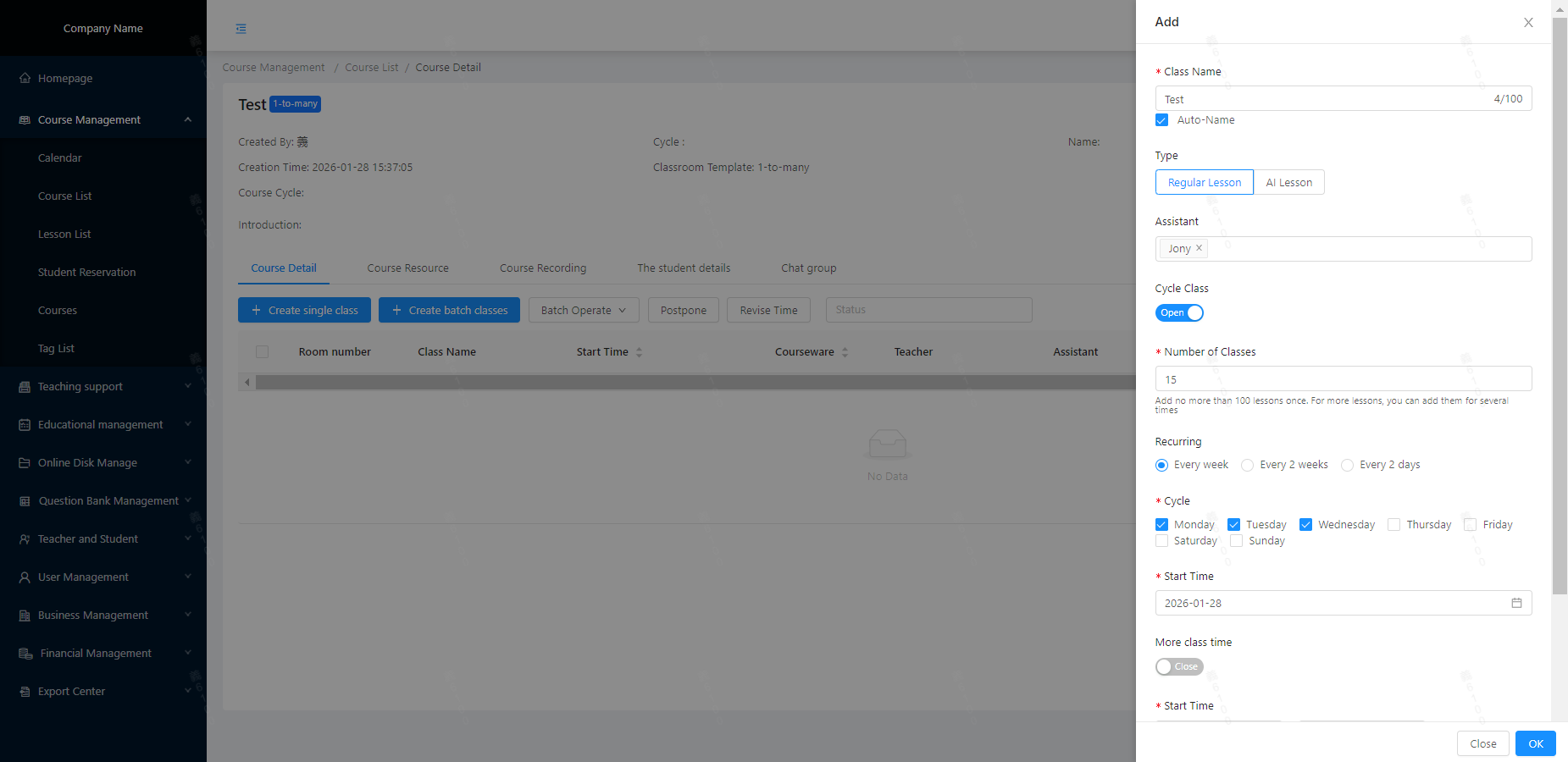 - Enter the class lesson name
- Enter the number of class lessons
- Edit the courseware of the class lesson
- Enter the class lesson name
- Enter the number of class lessons
- Edit the courseware of the class lesson
3.Recurring Scheduling (Enabled): The system schedules one class per day according to the set recurring pattern. If the class time varies on different days of the week, you can enable Multiple Class Time Slots to set different class times for different days. As shown in the figure below:
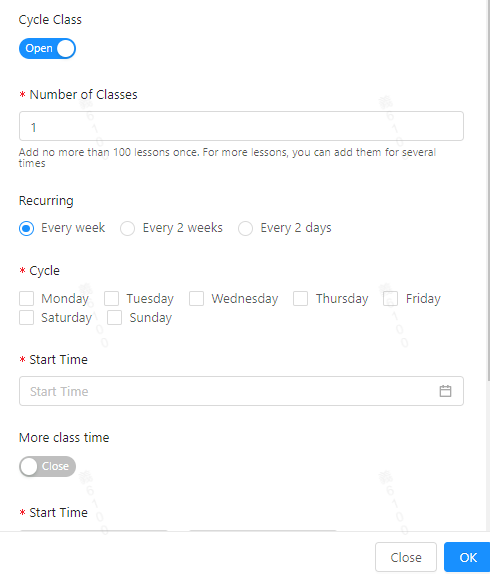 - Enter the class lesson na
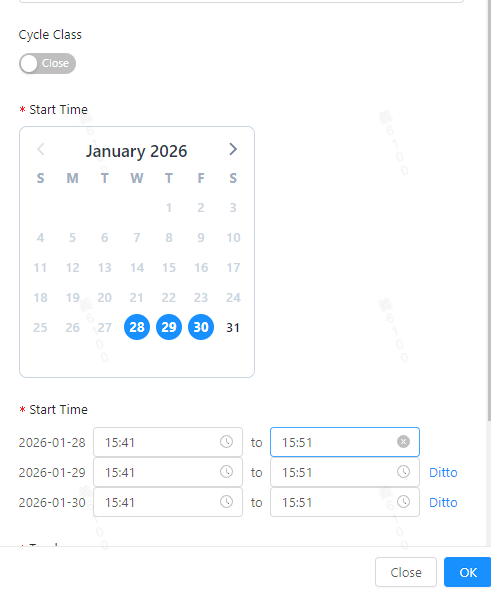
4.Recurring Scheduling (Disabled): You can select multiple dates on the calendar based on the availability of teachers and students. A separate class time can be set for each date; for two or more dates, the Same As Above button can be used to quickly sync the class lesson times. As shown in the figure below:
- Enter the class lesson na
4.Recurring Scheduling (Disabled): You can select multiple dates on the calendar based on the availability of teachers and students. A separate class time can be set for each date; for two or more dates, the Same As Above button can be used to quickly sync the class lesson times. As shown in the figure below:
 5.Class Session Courseware Settings:
- None: No courseware is attached when creating a class lesson (Courseware can be maintained subsequently, uploaded locally in the classroom, or linked to cloud disk courseware).)
- Link Courseware: The linked cloud disk courseware will be synced and inserted into all newly created class lessons.
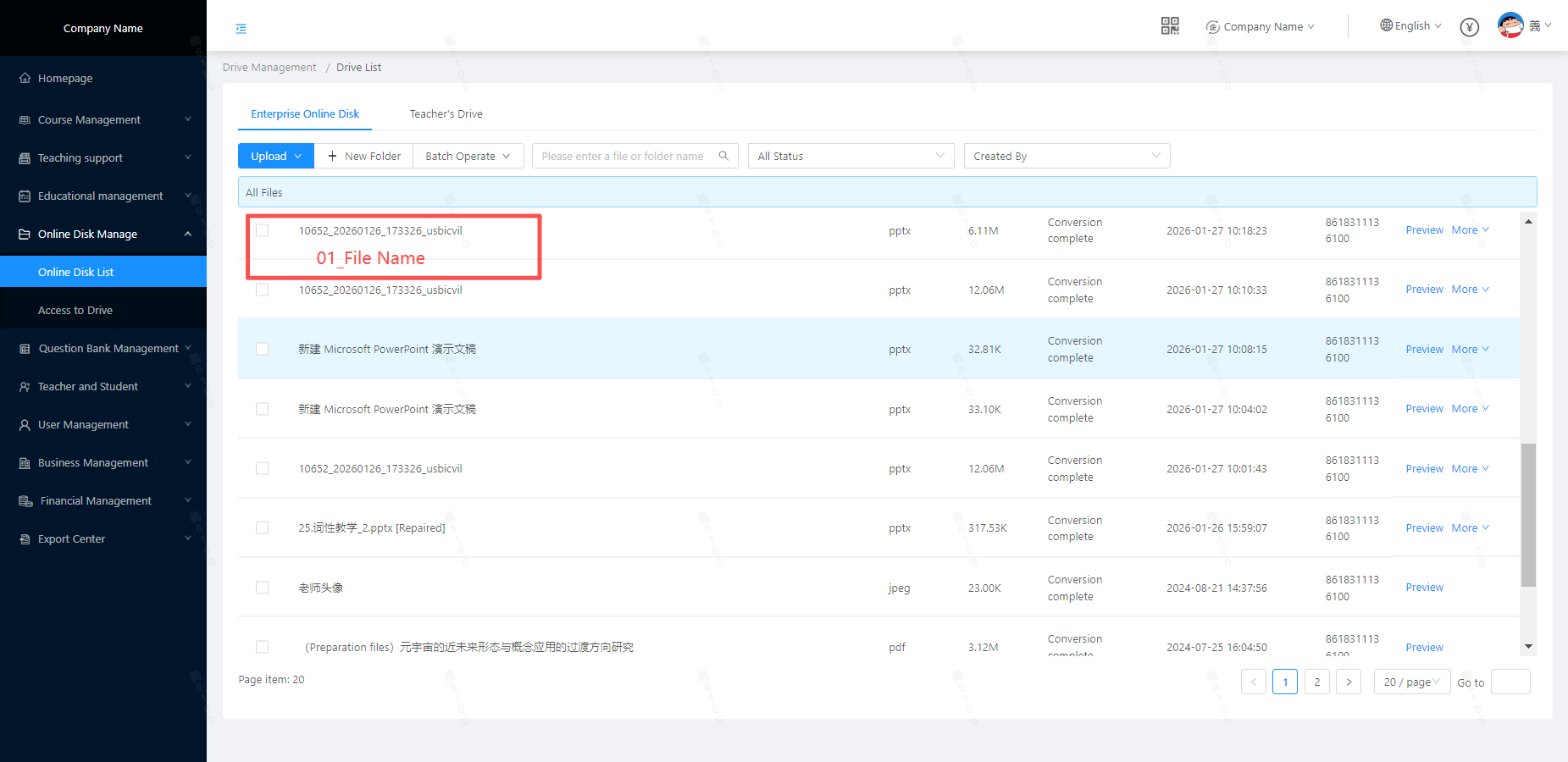
- Match Courseware: Select a cloud disk directory and a matching rule (the file names of courseware under the cloud disk directory must be consistent with the currently selected rule); select a starting number. After the class lessons are created, different courseware will be automatically inserted into the corresponding class lessons according to the numbers (as shown in the figure below).
5.Class Session Courseware Settings:
- None: No courseware is attached when creating a class lesson (Courseware can be maintained subsequently, uploaded locally in the classroom, or linked to cloud disk courseware).)
- Link Courseware: The linked cloud disk courseware will be synced and inserted into all newly created class lessons.
- Match Courseware: Select a cloud disk directory and a matching rule (the file names of courseware under the cloud disk directory must be consistent with the currently selected rule); select a starting number. After the class lessons are created, different courseware will be automatically inserted into the corresponding class lessons according to the numbers (as shown in the figure below).
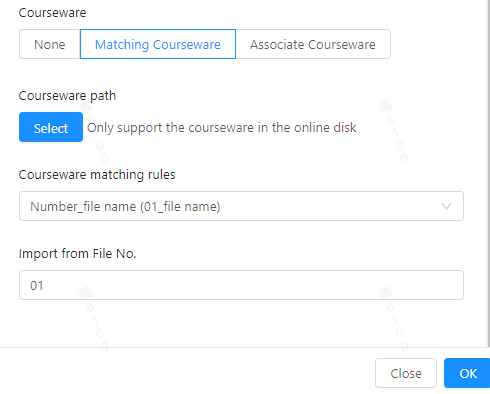 (The rules must match the courseware file names in the target directory!)
6.The course and its lessons have been created successfully. The sorted list of lessons will be displayed in the course details, as shown in the figure below: