How to create an on-demand course (Video course)
I. Enable on-demand courses
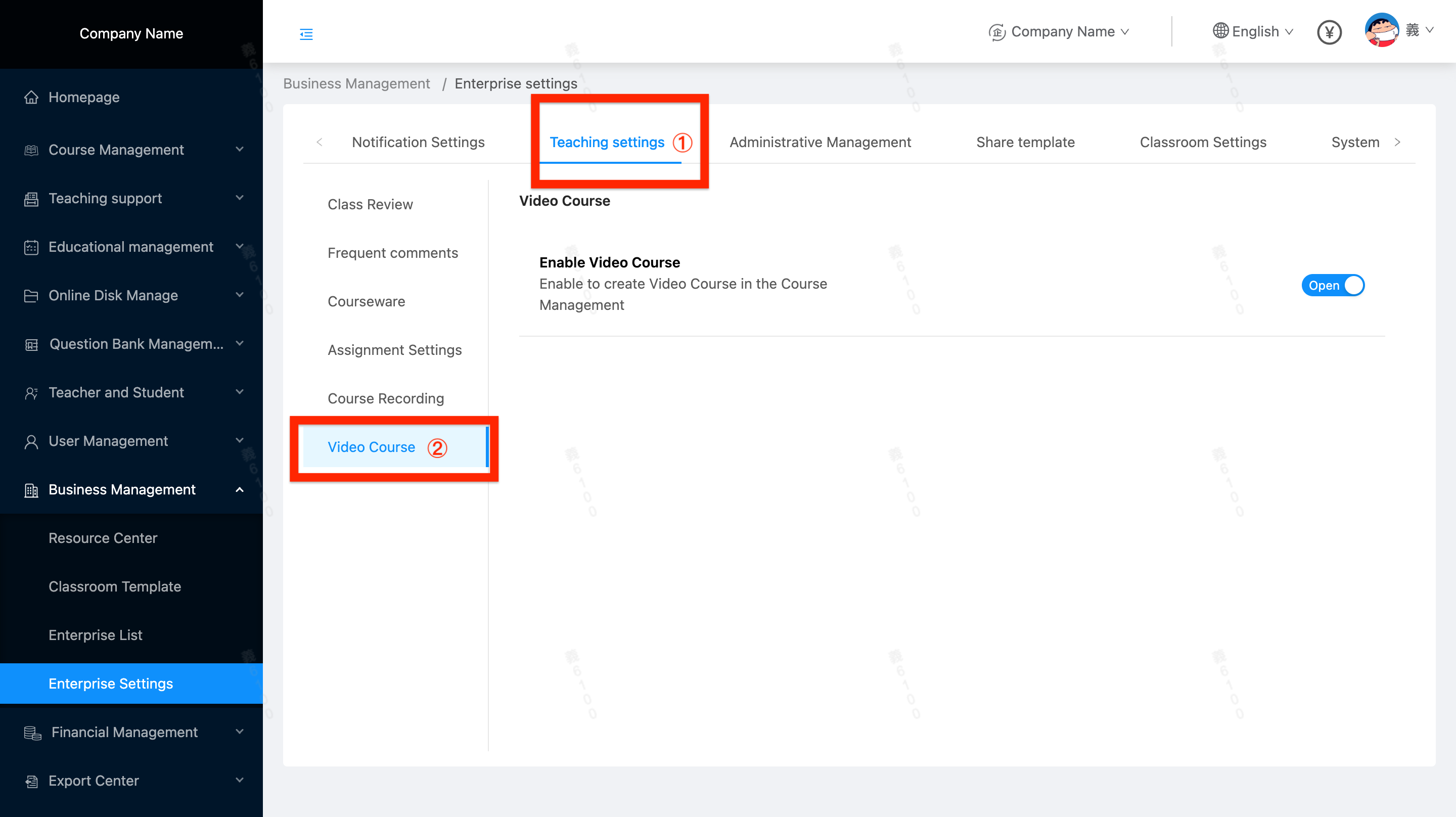 1. As shown in the figure, manually enable the configuration item [Enable video courses].
2. After the video course is enabled, the system will automatically create an on-demand application for the enterprise. The waiting time is no more than 30 minutes.
3. After the video course is successfully enabled, you can create an [video course] in the course management.
4. At the same time, the menu [Video Management] will automatically open in the Enterprise Management/Material Center. Enterprises can upload video course video materials here for repeated association when creating video courses (as shown below).
II. Video Management
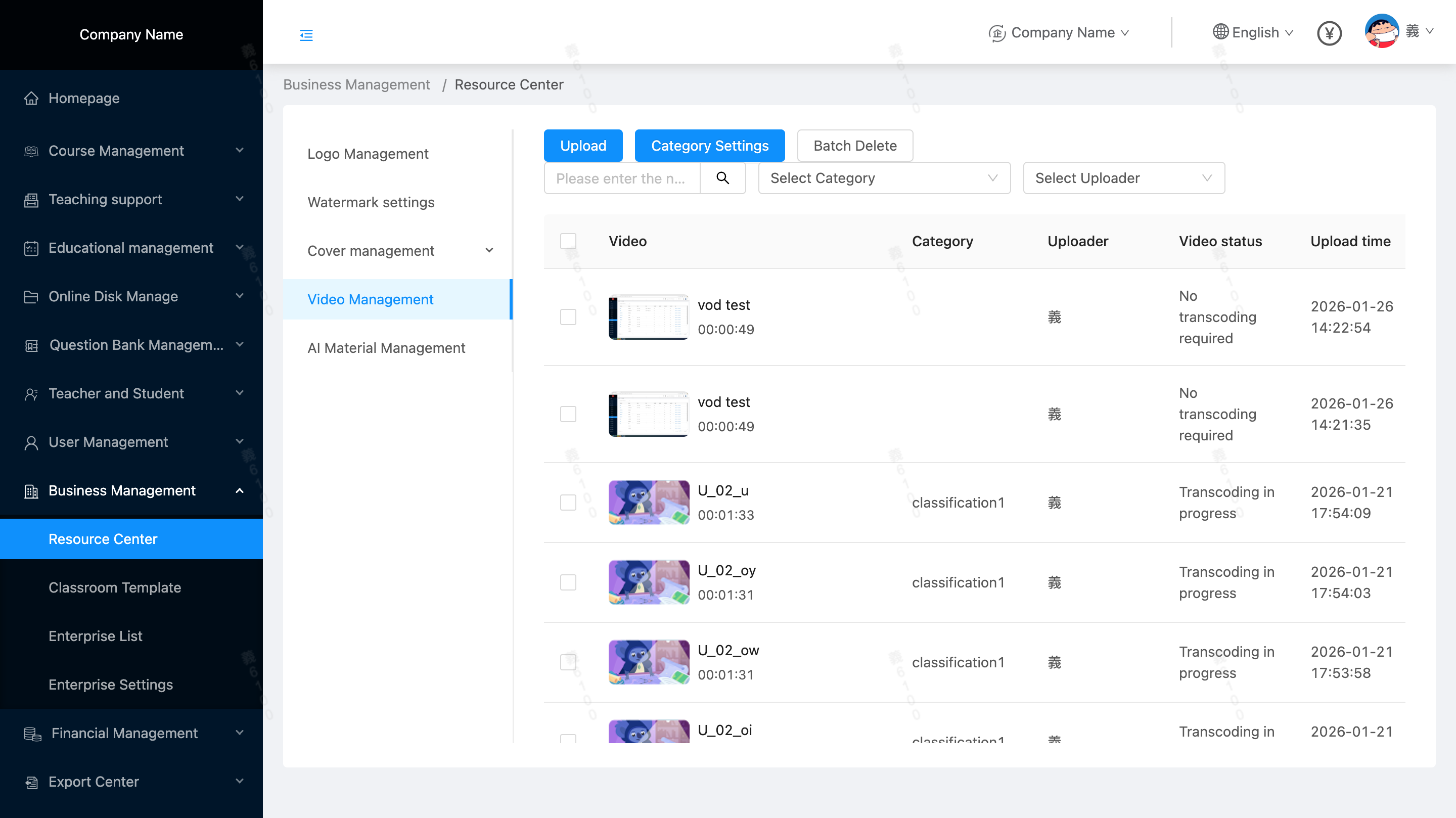 1. Uploaded videos support: preview, edit title, edit thumbnail, delete (Note: if the video has been associated with a section, deletion is prohibited)
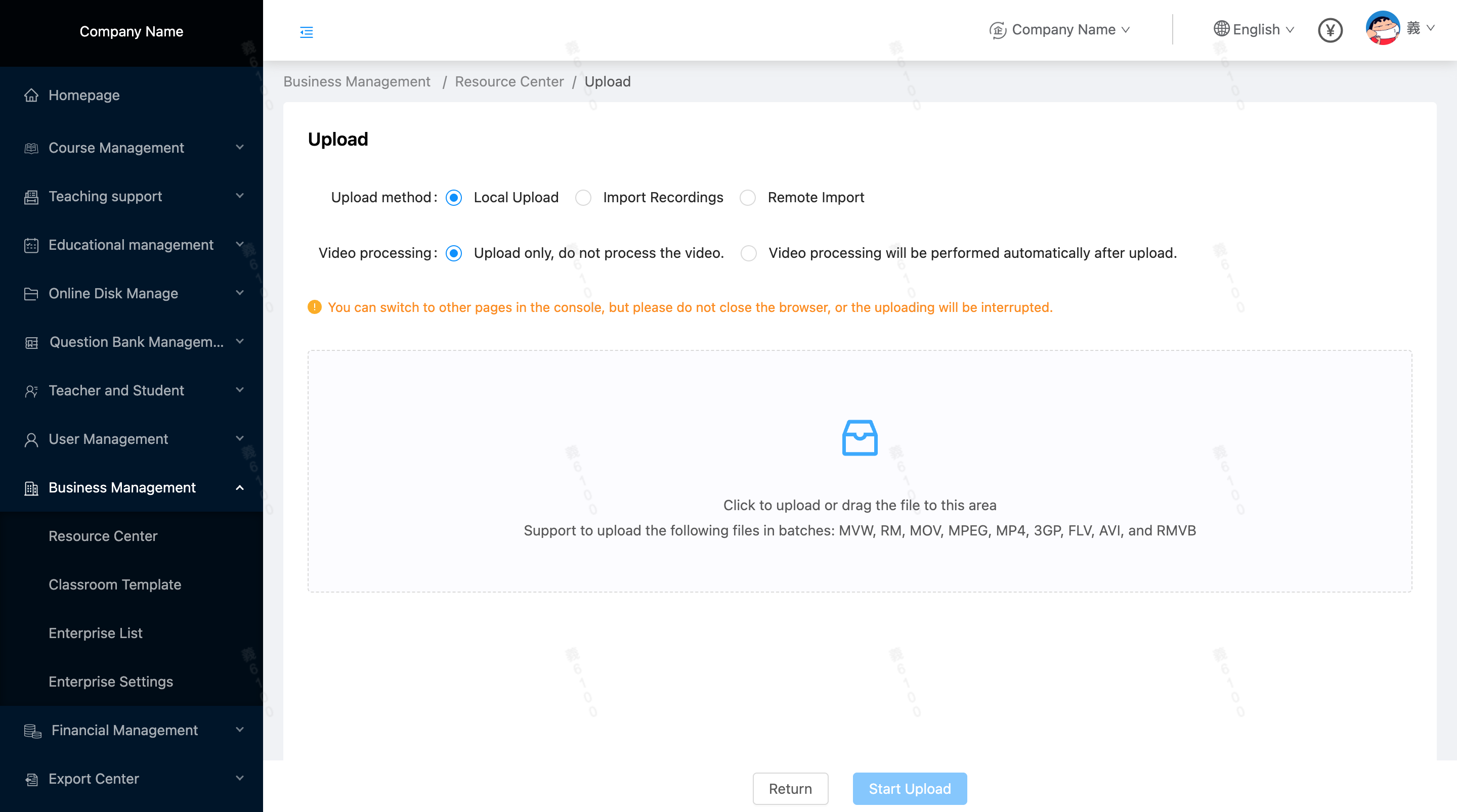
2. Video upload: supports batch uploading of local videos, batch pulling of live recordings, batch pulling of video remote links, (association with AI materials, please stay tuned)
III. Create on-demand courses
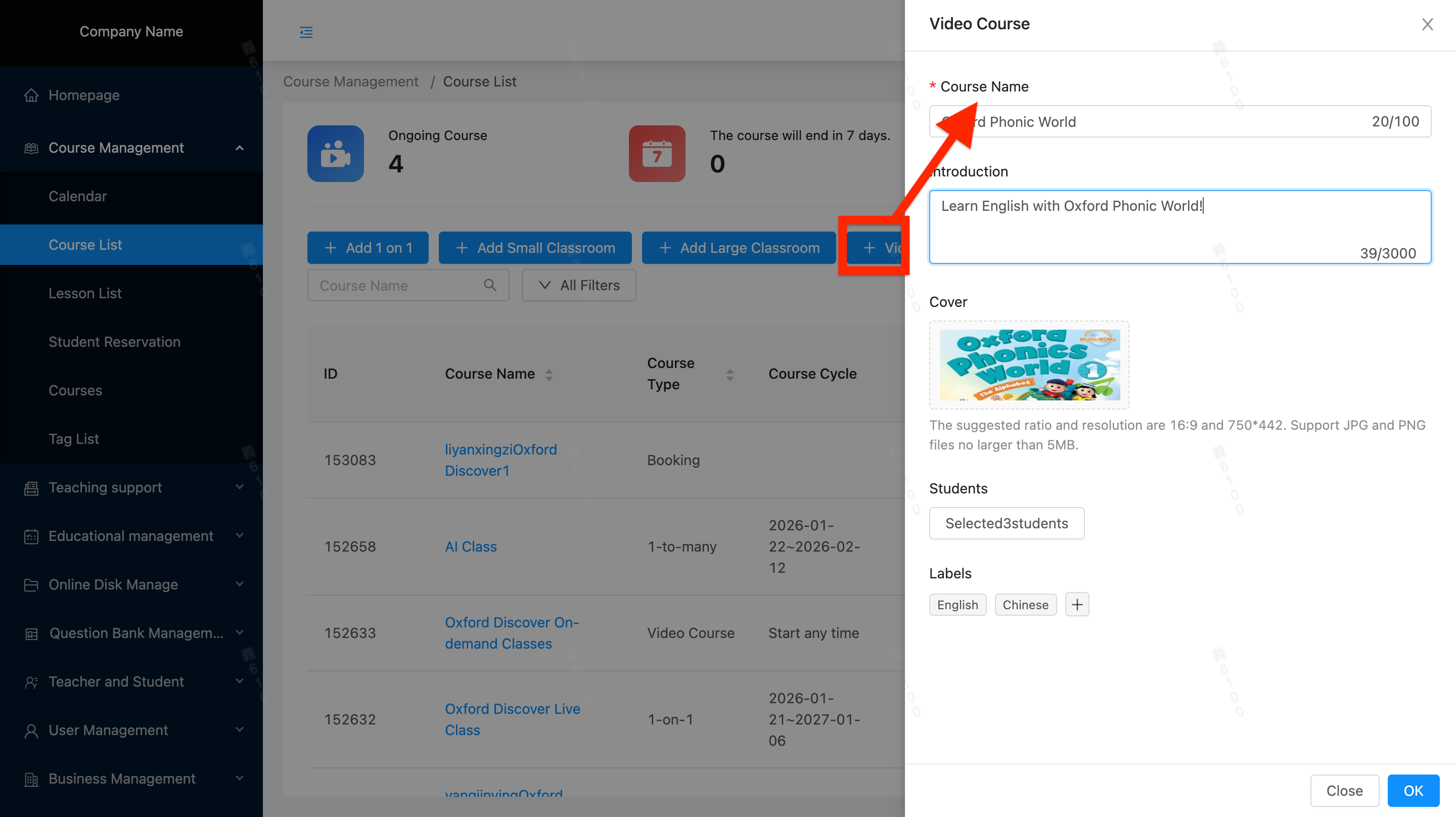 1. After opening the video course service, the course list is as shown in the figure, and [Create video course] is supported. The corresponding creation panel is as shown in the figure;
2. If the video course is not opened, the creation button related to the live course will not be folded, which is the same as before
1. After opening the video course service, the course list is as shown in the figure, and [Create video course] is supported. The corresponding creation panel is as shown in the figure;
2. If the video course is not opened, the creation button related to the live course will not be folded, which is the same as before
IV. Details of On-Demand Courses
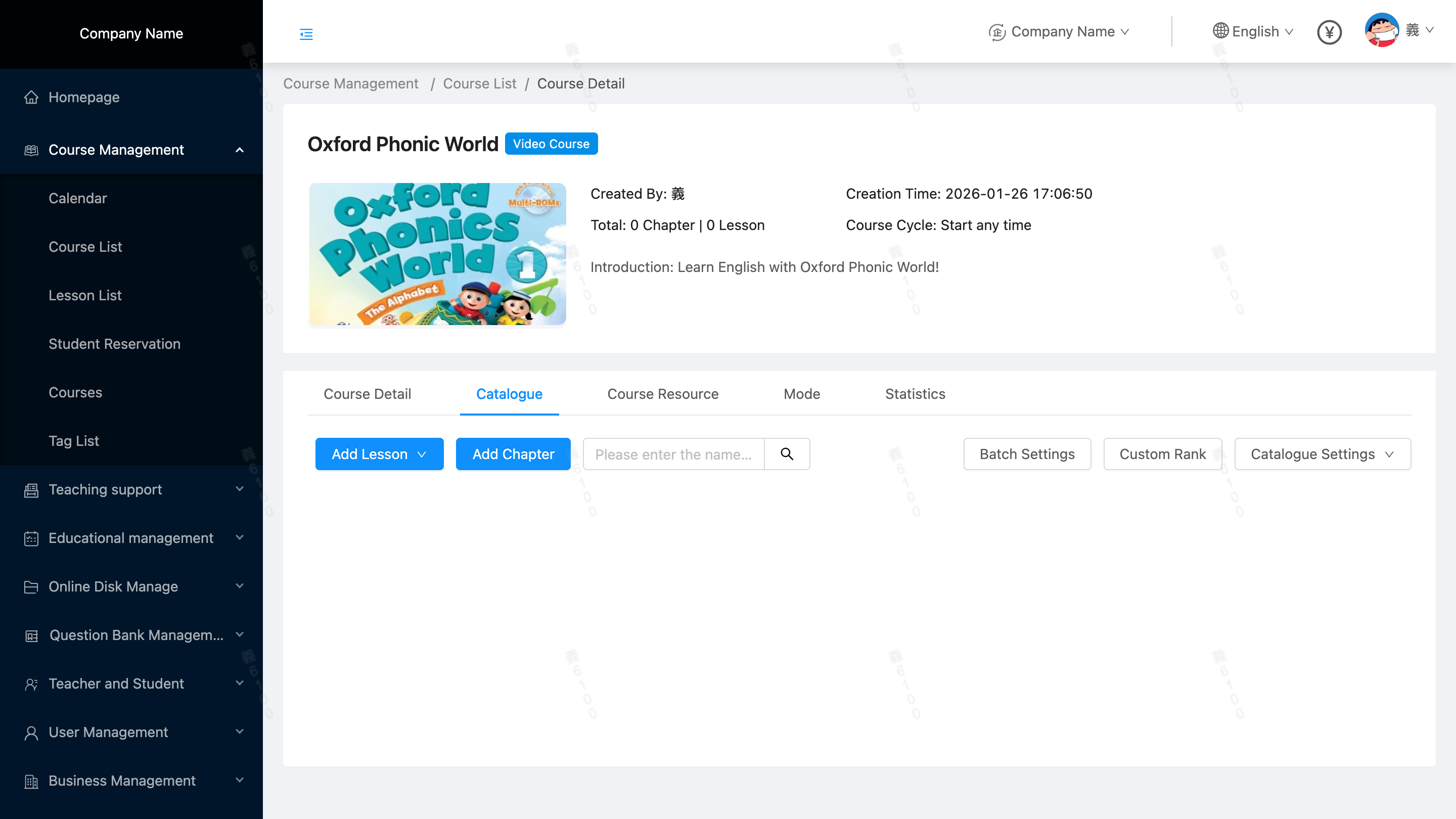 1. 1. The video course has been successfully created. As shown in the image, you will be automatically redirected to the video course details page (default tab: Course Directory).
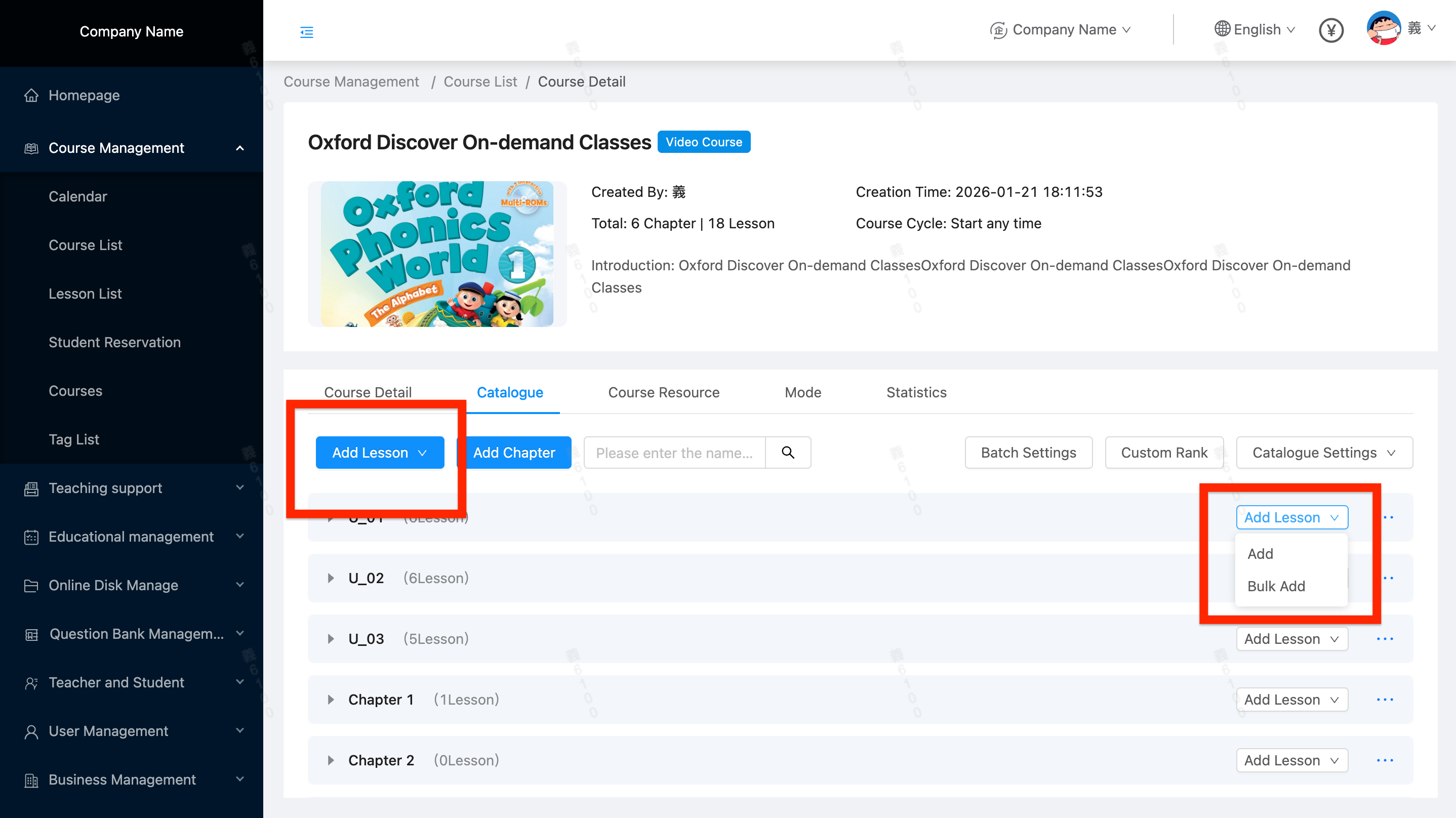 2. Add sections:
- Add the following to the directory: The created section, independent of the chapter, at the same level as the chapter.
- Add the following to the section below the target chapter (inclusive relationship):
- Sections can be added individually or in batches.
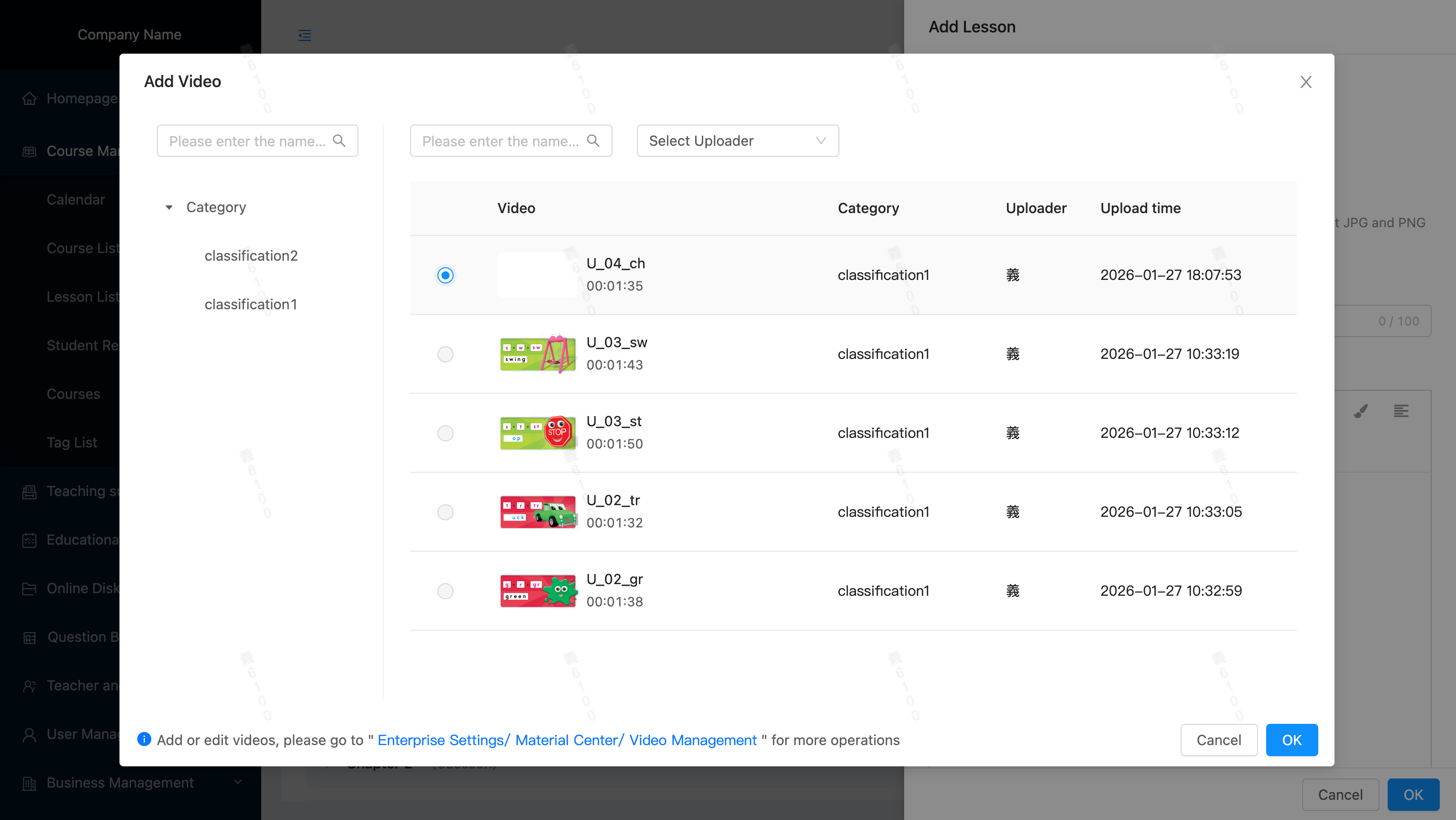
- Add in batches, as shown in the figure; in the Add Video panel, you can check multiple videos at the same time to add them (Note: Under the same course, videos that have been associated cannot be selected again; the checkbox is grayed out and cannot be clicked)
- Videos added in batches can be edited through secondary editing to modify the video, cover, name, and rich text.
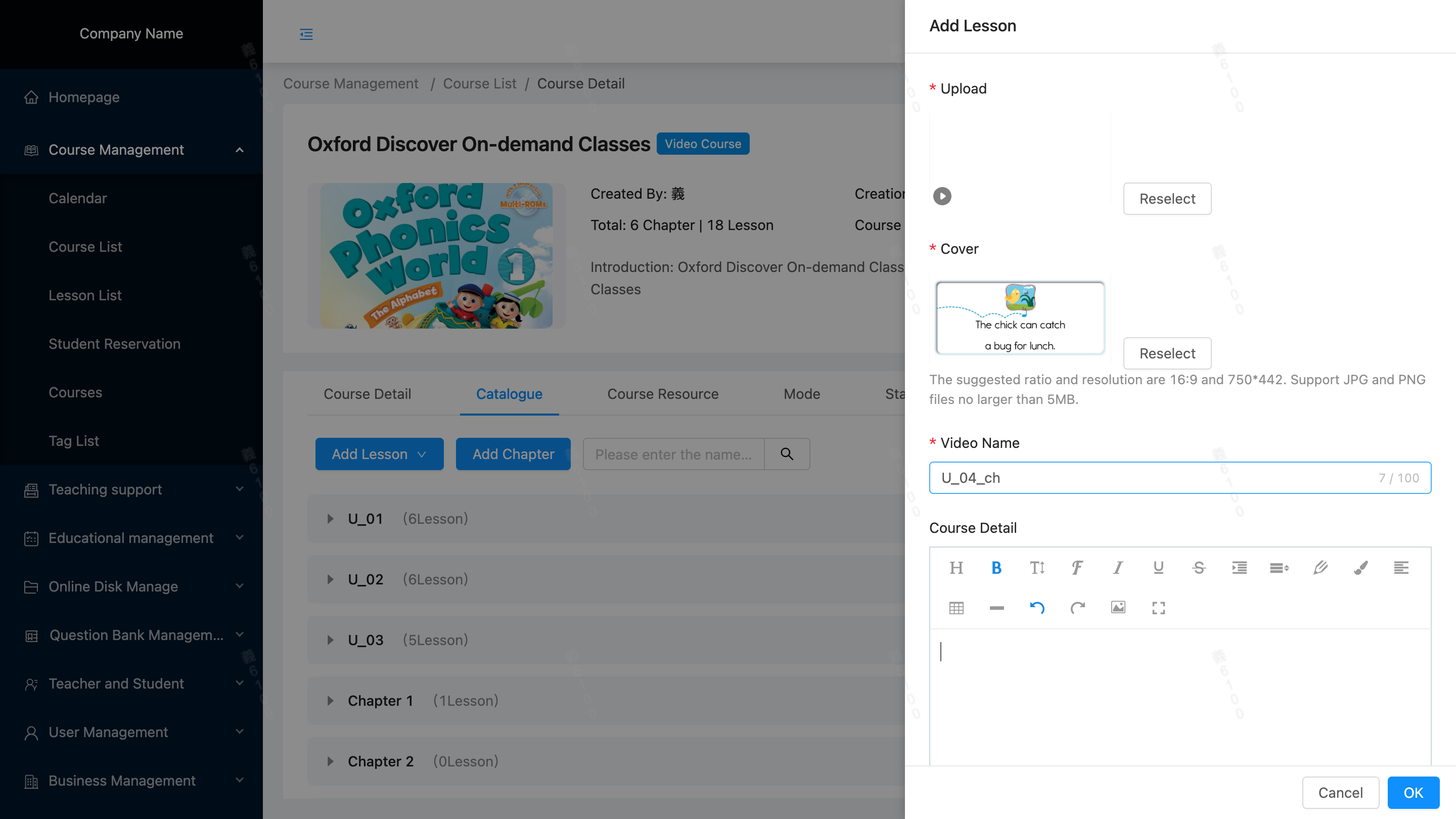
- Adding a single video, as shown in the image: allows selection of the video, modification of the cover and section name, and rich text editing (text and images) of the details.
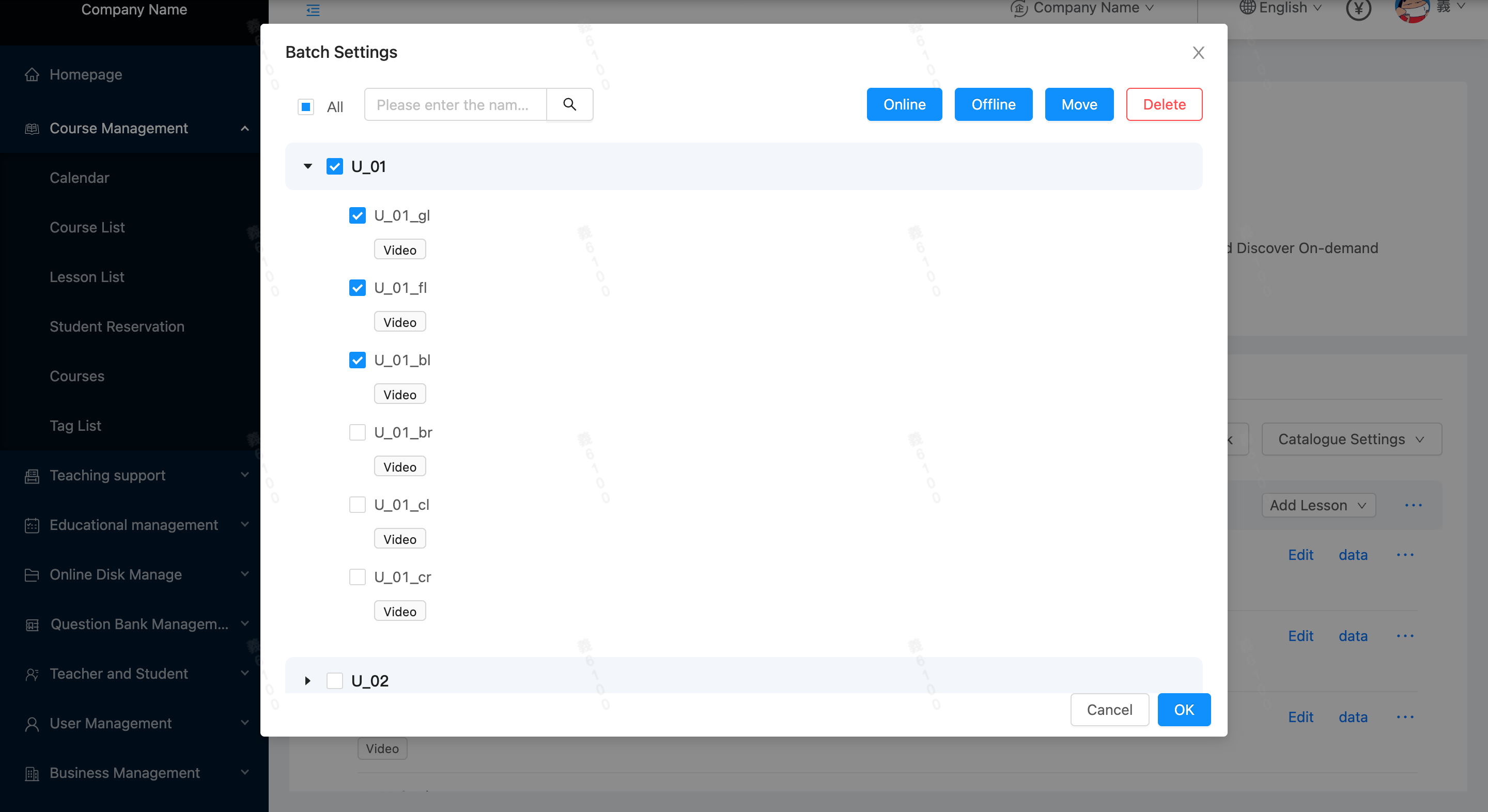
- Batch settings, as shown in the figure: you can add or remove sections, move them, or delete them.
- Once a section is taken offline, the target section will be invisible on the student's end (it can be restored by going back online).
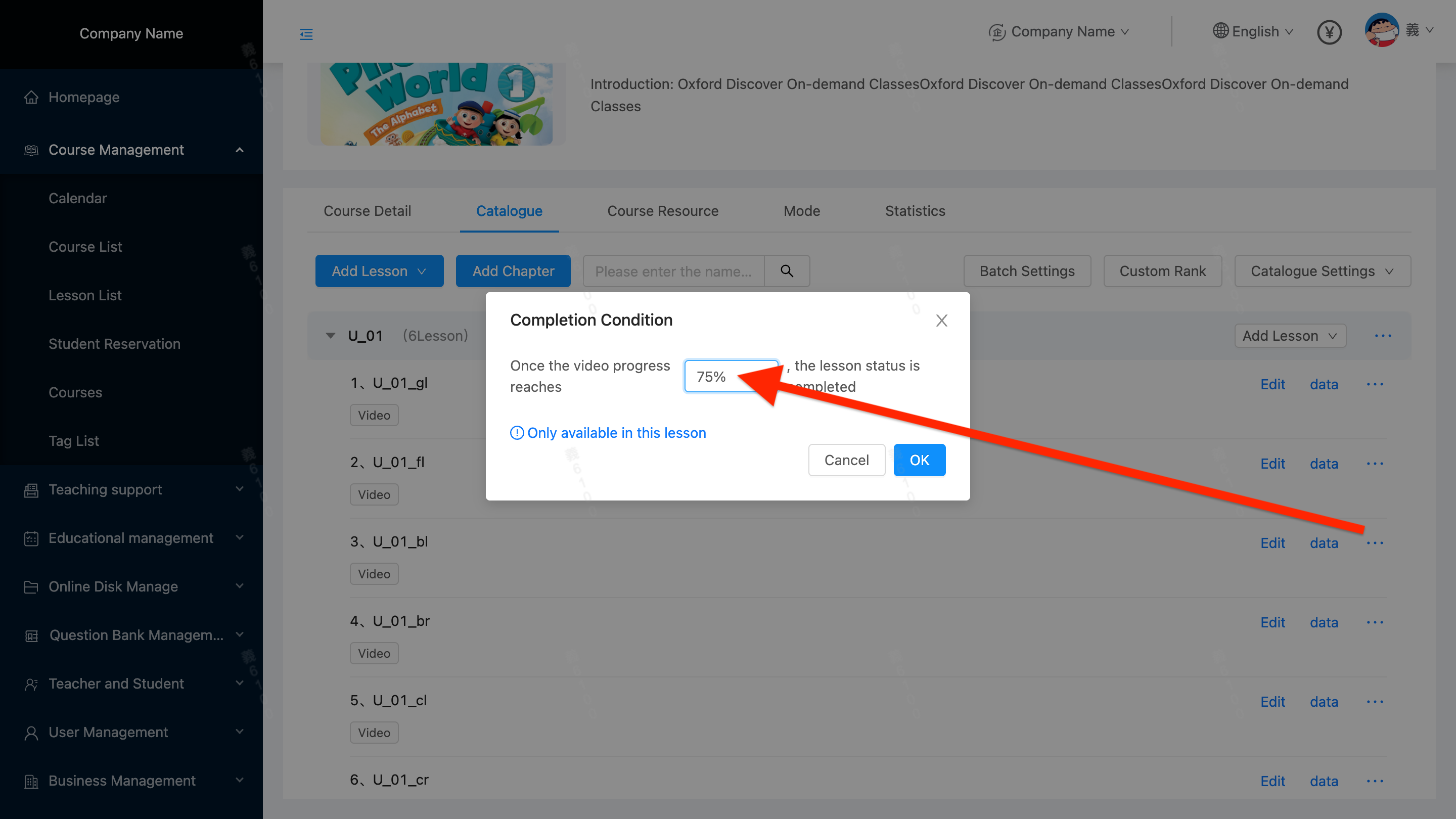
-
The section completion conditions are as shown in the figure: if the student watches the progress and reaches the set percentage, he/she will be considered as the target student and the current section has been completed (in the level-breaking mode, the next section will be automatically unlocked)
-
On-demand course (video course) details:
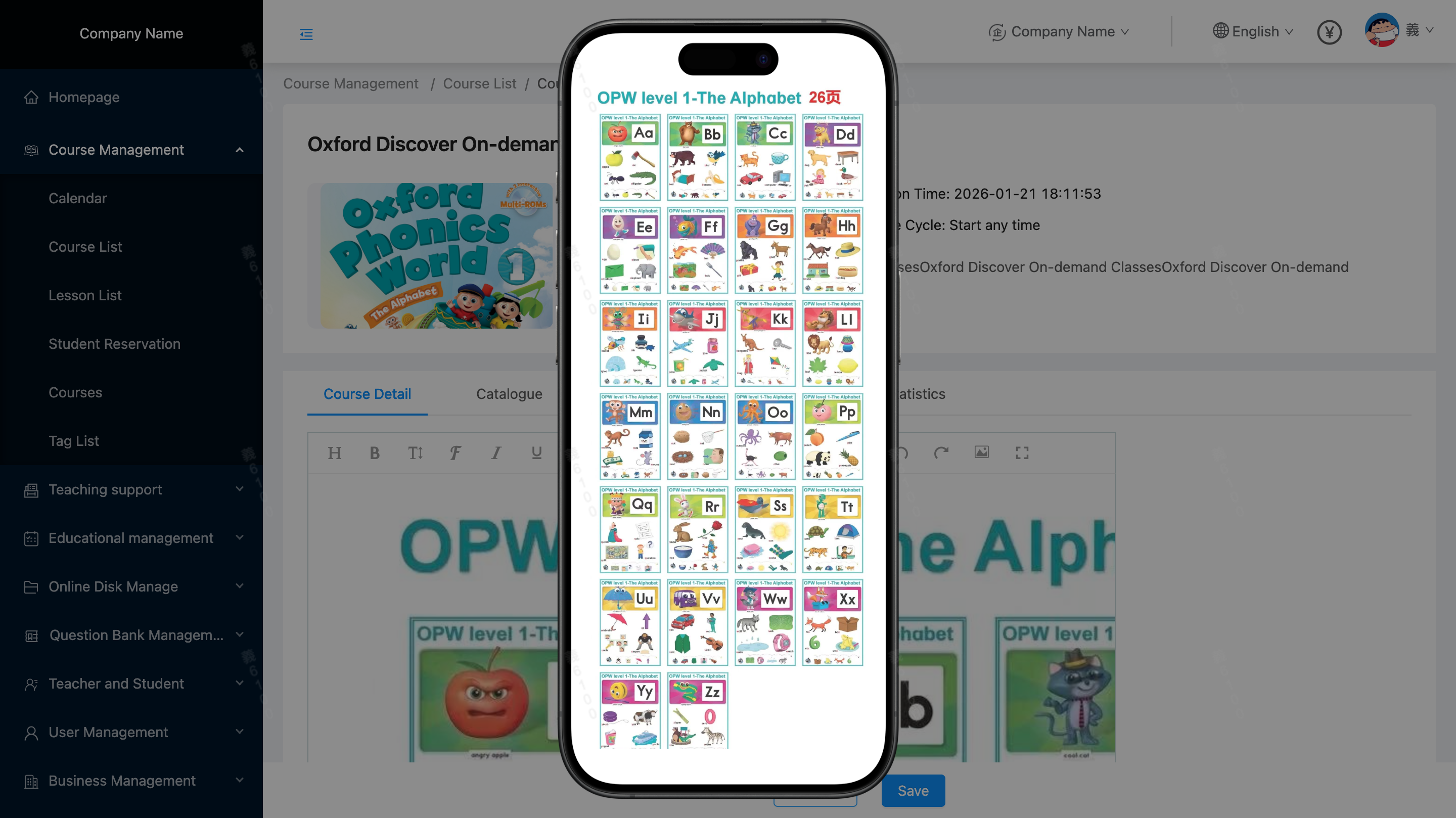
- As shown in the image, similar to the section details, it supports rich text editing and also supports the 【Mobile Preview】 function.
. Course Material Package
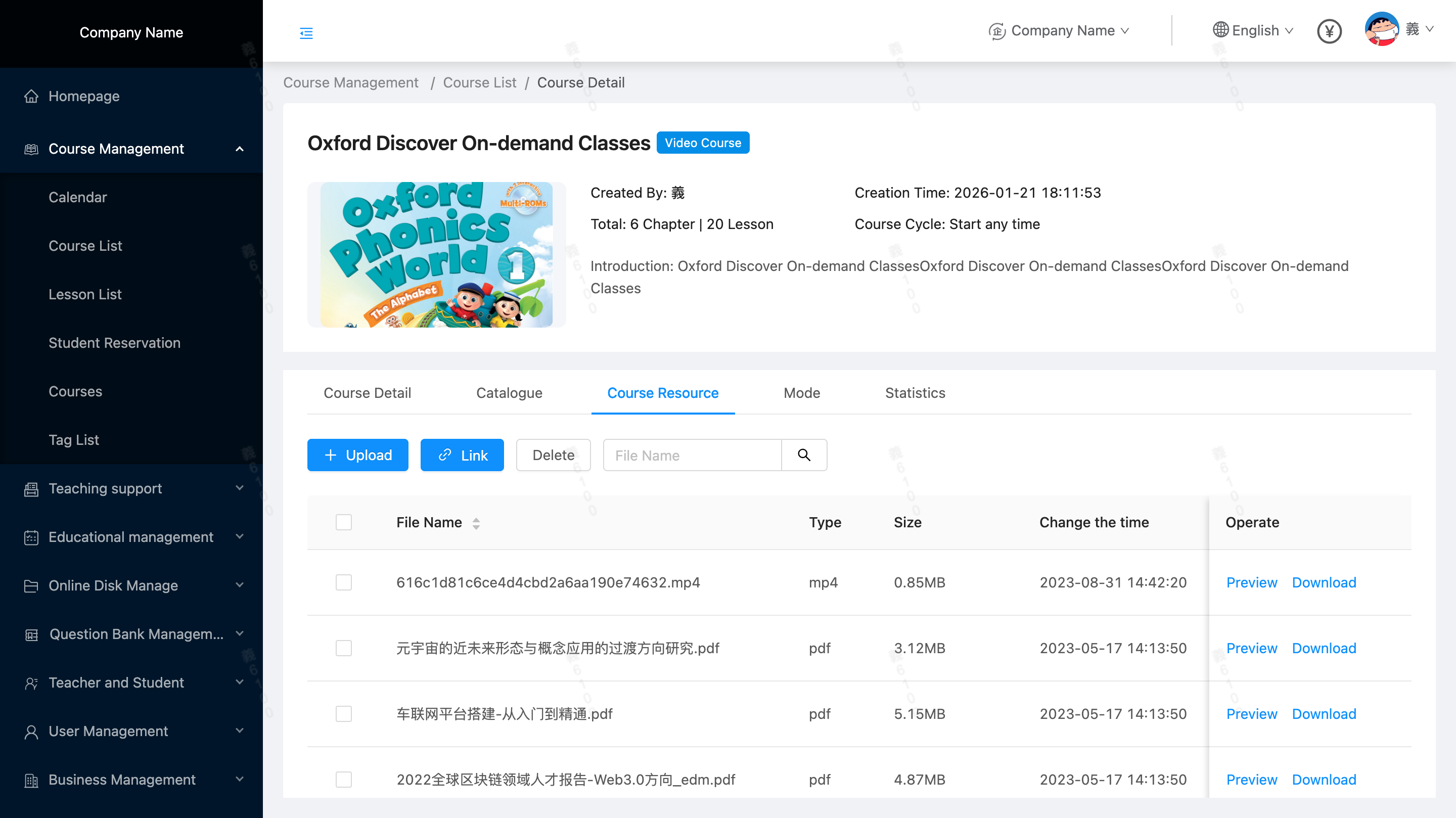 * As shown in the image, similar to the live course material package, businesses can upload relevant courseware to the current on-demand course via "local upload" or "cloud drive association" for students to watch and learn from.
-
Course mode:
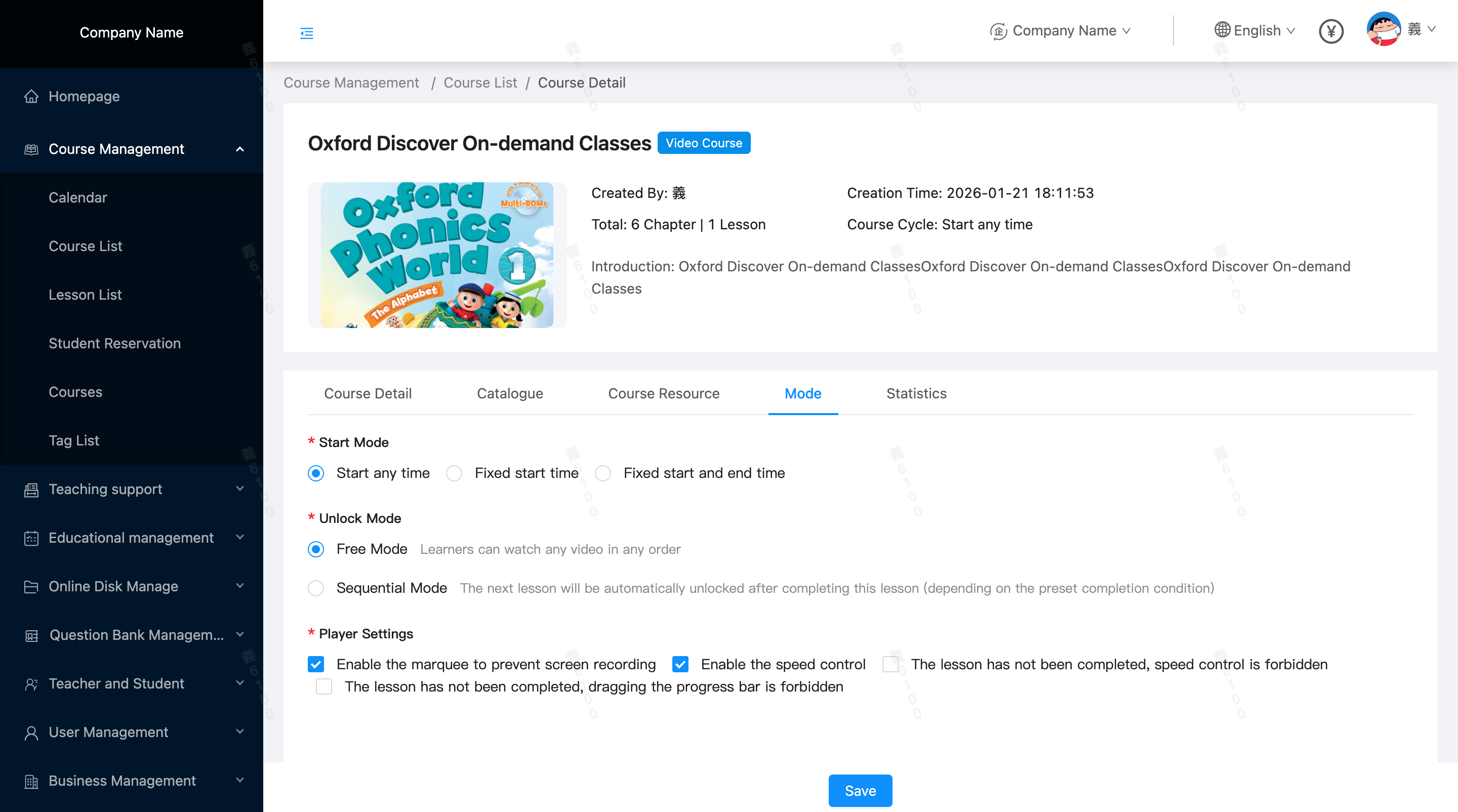 The modes of start course :
 -
Learn anytime, anywhere: No time restrictions, access and learn anytime.
- Fixed class start time: Learning is not allowed before the set start time.
- Fixed start and end times: Learning is only allowed within the set time interval; learning is not allowed at other times.
Unlock method:
- Free mode: students can study any lesson
- Challenge Mode: The next section is automatically unlocked upon completion of a section (based on the completion conditions set when adding/editing sections).
Player settings:
- Enable screen recording protection for scrolling text: Checked by default
- Enable double-speed playback: Checked by default
- "Playback speed disabled until section completed": This option is unchecked by default. When checked, playback speed will be disabled until the section is completed.
- "Progress bar cannot be dragged if section not completed": This option is unchecked by default. When checked, the progress bar cannot be dragged if the section is not completed.