Question creation
- Before creating a test question, it is recommended to create a test question category first (sub-categories support up to 10 levels)
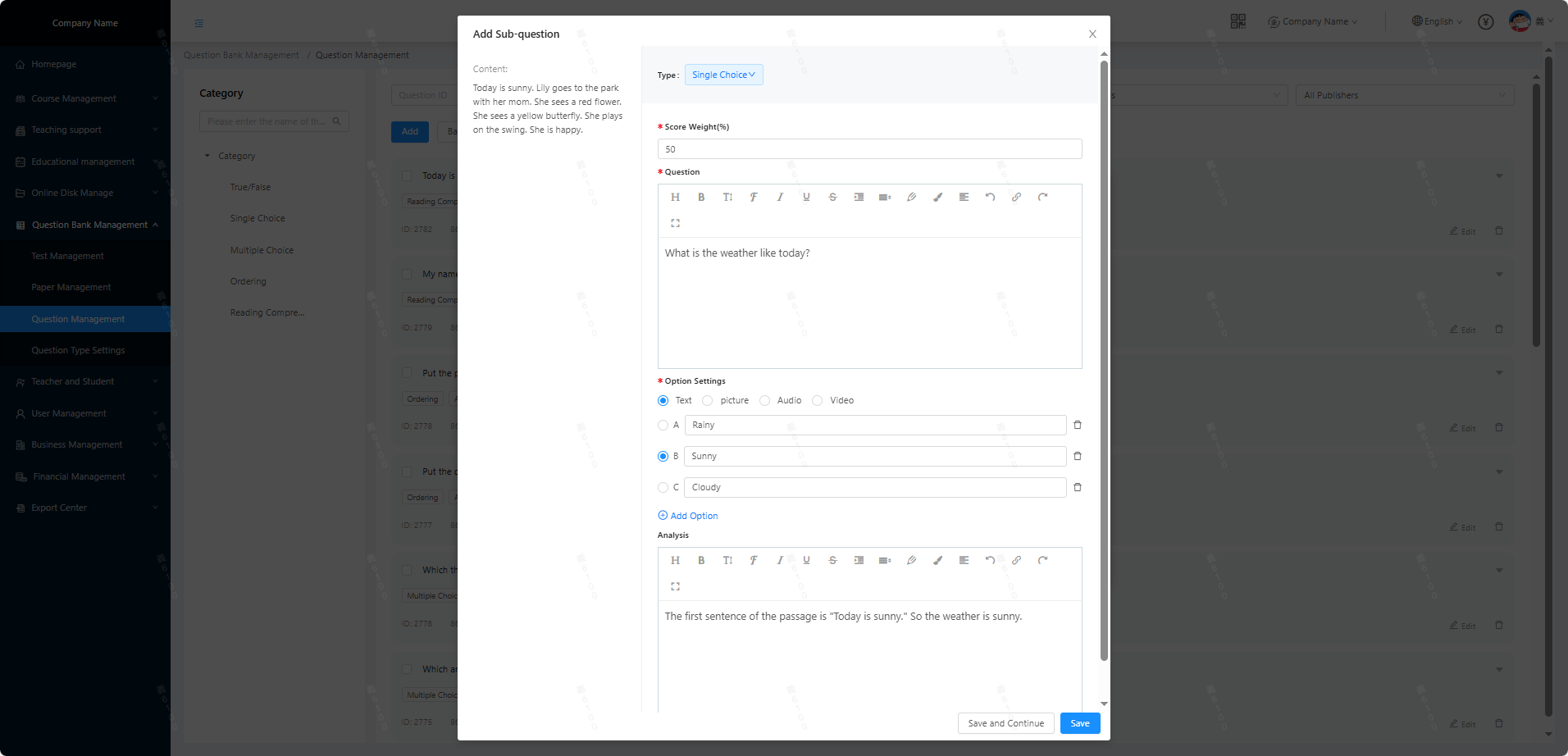
- Taking multiple-choice questions as an example, here are the instructions for creating questions (Figure 1 above):
● Click [Add Question] as shown in the figure, and you can select the question "category, question type, and difficulty";
● Title: This title is only used to distinguish between test questions in the background, and is not the test question stem;
● Test question title: This is the test question stem, which is displayed in the test paper (the type is rich text, and the question stem can be designed in a variety of ways as needed);
● Setting options: Option content supports multiple types of display, as shown in the figure (for pure text options, text is required; if the option has attachments, the attachments are required and the option title is optional; you can edit it appropriately according to your needs)
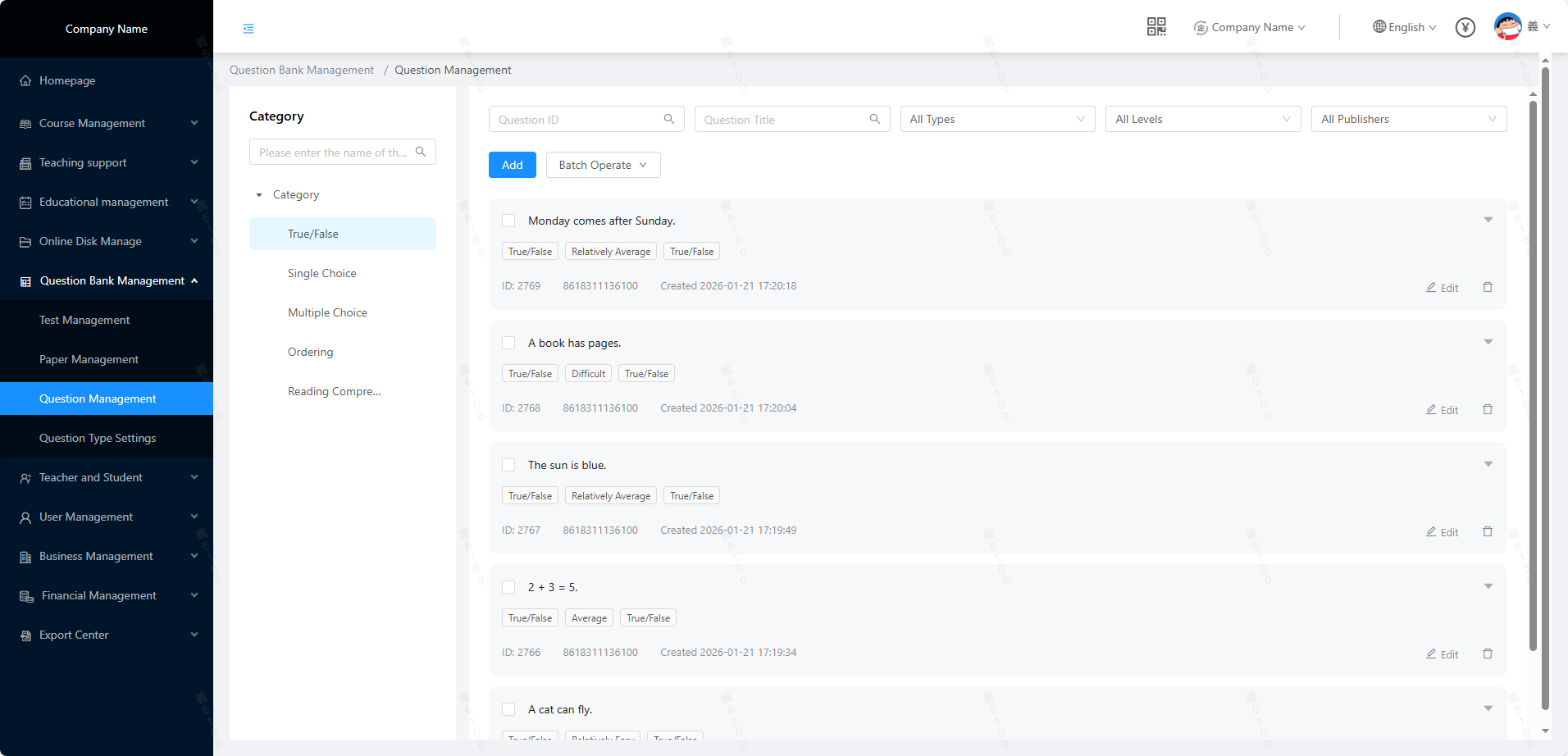
● Test question analysis: Rich text type, the entered analysis content can be viewed by students after submitting the test paper. - After the test question is successfully created, it will be displayed in the test question management (Figure 2 above);
- The test questions here will be directly referenced when creating the test paper; and after the test is assigned, students will be asked to answer accordingly.